

Appearance
Set up MeshSat Android
Setup is a short list: install the app, pair your node, and optionally connect the Hub and allow SMS. Each line in Setup shows where that link stands, and Home says what to do when one is not working.
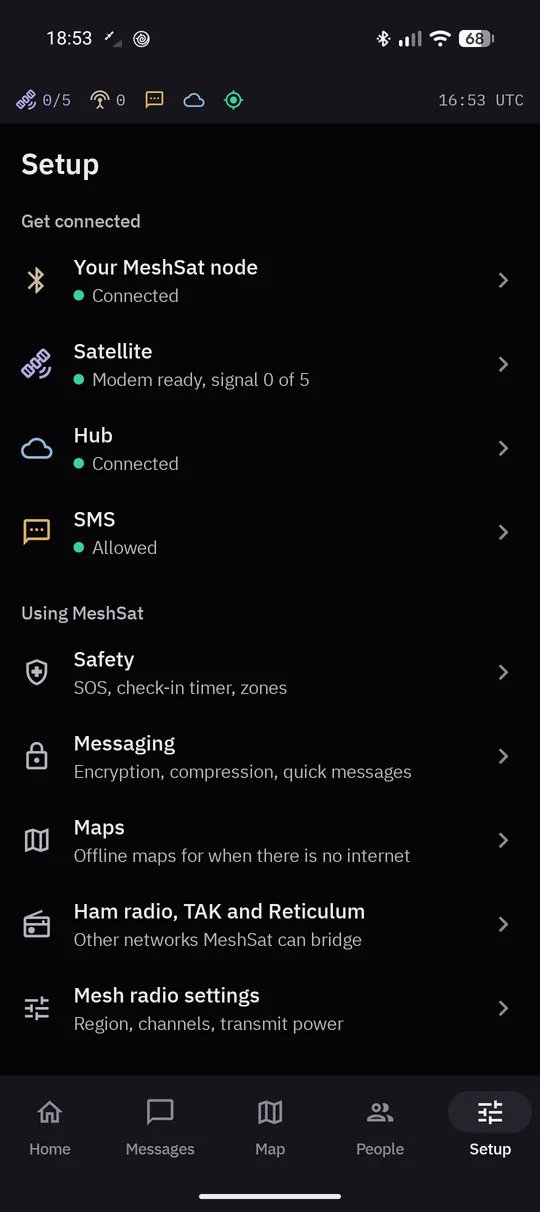 Setup: node, satellite, Hub and SMS, each with where it stands.
Install
The app comes in two editions. The full app, SMS included, is the APK from the GitHub releases; F-Droid will carry the same edition once it lists the app. The Google Play edition is the same app without SMS, because Google Play does not allow SMS in an app that is not the phone's SMS app. It is on Google Play and nowhere else, and it can be a version behind the GitHub releases.
Both are net.meshsat.android, but Play signs its edition with its own key, so a Play install and a GitHub install cannot update each other. To switch, uninstall one, install the other, and provision it with the Hub again.
From Google Play: open the listing, tap Install, and go on at step 4.
The full app, from GitHub:
- Download the APK for your phone from the latest release. There is one per processor: take arm64-v8a unless you know otherwise, since nearly every phone since 2016 is that. armeabi-v7a is for older 32-bit phones, x86 and x86_64 for emulators, and universal works on all of them. Download sizes vary by release; the universal APK is larger because it includes every supported processor.
- Let your browser or file manager install unknown apps. Android asks the first time.
- Open the APK and tap Install. Play Protect may warn about an unknown developer, because this APK does not come from the Play Store: tap More details, then Install anyway.
- Open MeshSat. A welcome page says what each permission is for before Android asks: nearby devices (Bluetooth), location and notifications. Android needs location for Bluetooth scanning. SMS is asked for later, in Setup > SMS, in the full app only.
Until the steps below are done, Home keeps a Getting started list of them, each one tap away.
You need Android 8.0 or later.
Check the signature first
Releases are built and signed in CI. Before you install an APK you can check it with apksigner verify --print-certs meshsat-android-<version>-release.apk. Every release since 2.8.0 shows the certificate SHA-256 digest 8ca78b6c33bd9796bb05f40fec2a0ab801e0297e7565960d42f5e6af821c9f66. The Google Play edition is signed by Play with a different key.
Coming from 2.8 or older? Since 2.9.0 the app is net.meshsat.android (it was com.cubeos.meshsat), so Android installs it as a separate app and nothing carries over. Uninstall the old one, install the new one, and provision it with the Hub again.
Pair your node
In Setup, open Your MeshSat node, tap Scan for Meshtastic devices, then Connect next to your node and enter its Bluetooth PIN. The scan lists every Meshtastic device in range, so pick the node by its name: a v0 node advertises as MSIR_ plus four hex digits. A plain Meshtastic radio pairs the same way. Node pairing needs version 2.9.10 or later.
After a restart the app reconnects to the same node by itself.
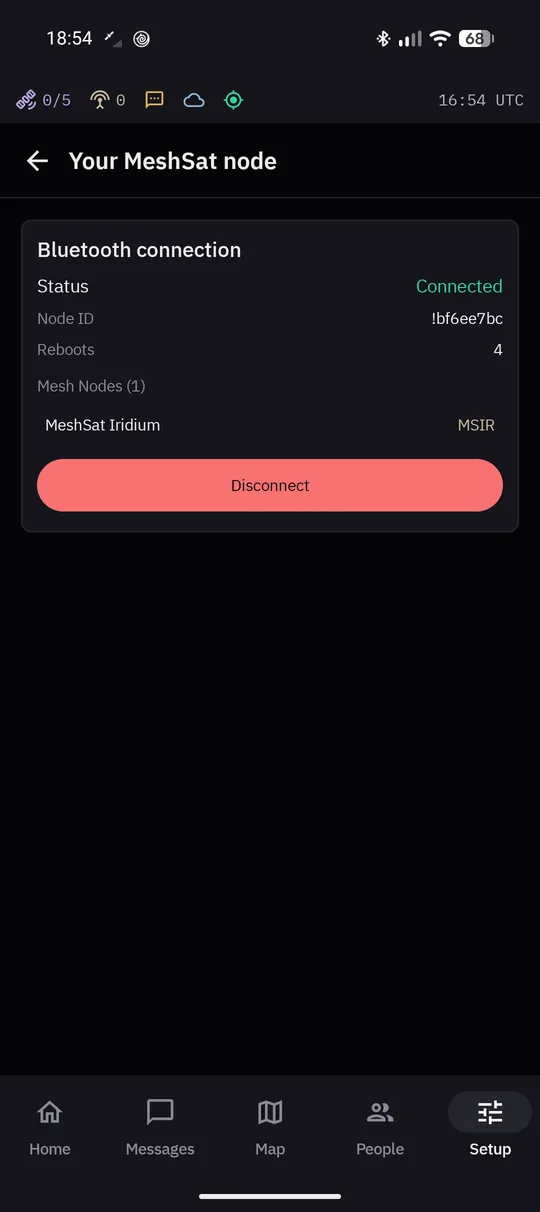 Your MeshSat node: connected over Bluetooth, with its id and its own radio.
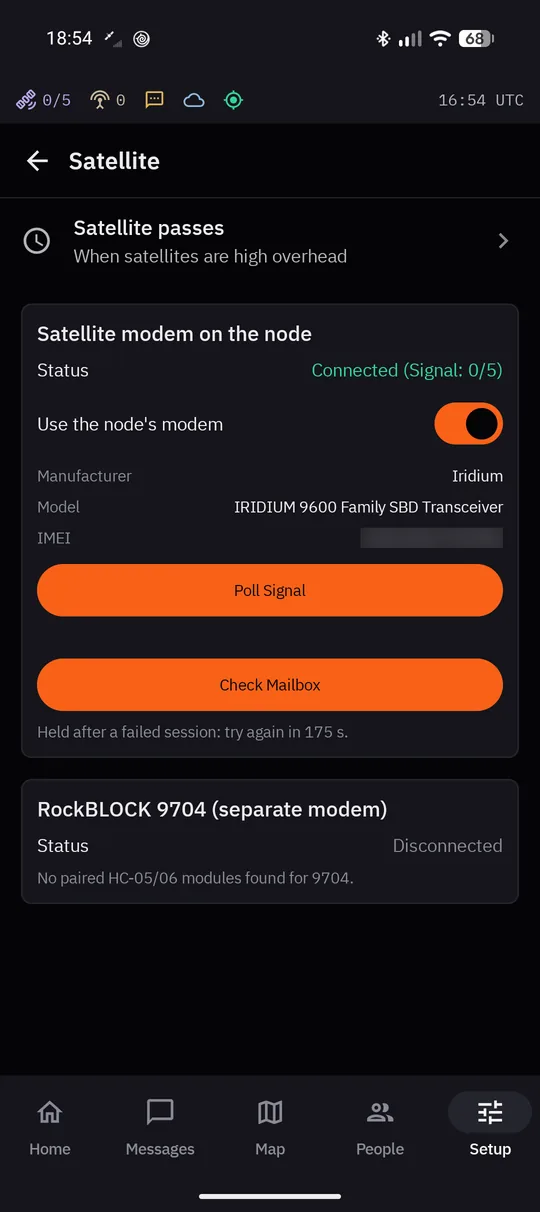 Satellite: the node's modem, with Poll Signal and Check Mailbox.
Satellite
With Use the node's modem on, which is the default, the app uses the node's RockBLOCK while the node is connected. Setup > Satellite shows the modem, its signal, and two buttons: Poll Signal and Check Mailbox. Each satellite session costs a credit, so read Satellite before you press them often.
A MeshSat node can carry a RockBLOCK 9704 instead of a 9603. The node says which one it has, and with Modem on the node on Auto, the default, the app picks the matching driver; the card shows what the node says. Choose 9603 or 9704 only to override it. With a 9704, a message that sees no satellite within 150 seconds is cancelled in the modem and tried again later, so the modem never holds it twice. This was tested on the bench on 8 October 2026; no message has gone through a satellite yet.
A RockBLOCK 9704 on its own is reached through an HC-05 or HC-06 Bluetooth serial adapter paired in Android's Bluetooth settings first. That code is in the app, but it has not been tested on hardware.
Hub (optional)
The Hub is where the phone reports and where satellite messages land. In Setup > Hub, tap Scan the Hub's QR code and scan the QR code from the Hub (see Connect a bridge). That sets the Hub address, the credentials and the client certificate in one go, and the phone appears in the Hub's fleet like a field kit.
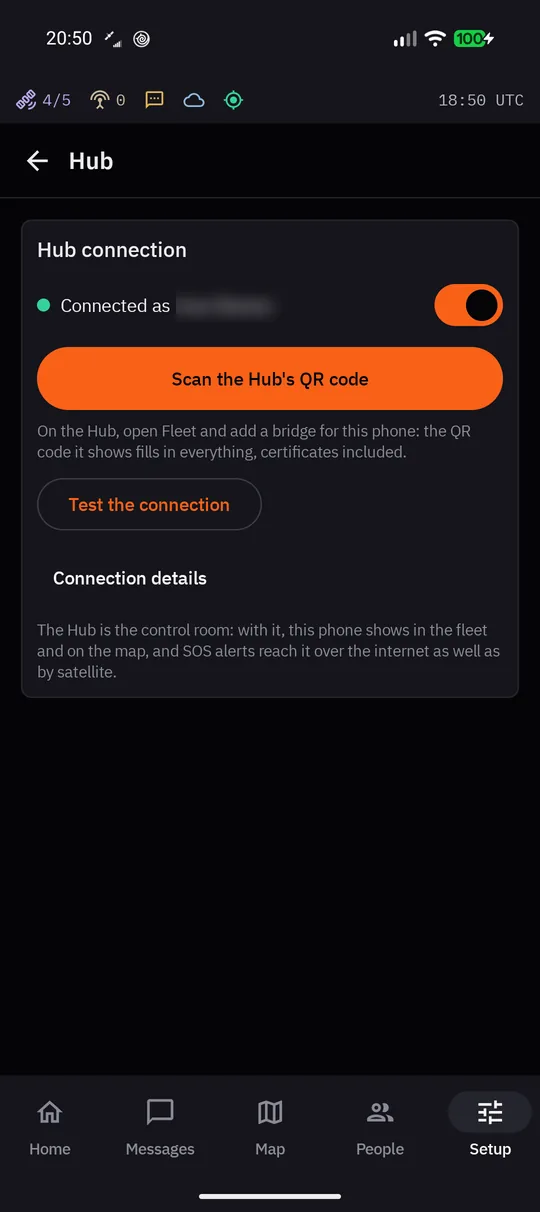 Hub: connected, provisioned from the Hub's QR code.
Everything the QR code fills in is under Connection details, for setting it up by hand. Reach a kit through the Hub, also there, is a fallback: when a field kit cannot be reached directly, the app reaches it through the Hub. It stays off until you enter the kit's bridge ID.
SMS
In Setup > SMS, tap Allow SMS and fill in the Kit phone number. The Google Play edition has no SMS: Setup, Home and the SOS screen say so.
Emergency contacts
In Setup > Safety, add the people an SOS goes to by SMS, each with the country code, then tap Test the alarm to see every route work. See Safety. On the Google Play edition an SOS goes by satellite, the mesh and the Hub, not by SMS.
Keep it running
The gateway runs in the background, so the phone keeps relaying with the screen off. To have it start again by itself after a phone restart or an app update, switch on Start after a phone restart in Setup > Advanced > Diagnostics. It is off by default. Android gives the app your position only once you have opened it after a restart.
Send something
In Messages, tap New message and pick who it is for: a node, everyone on the mesh, a phone number or the satellite. For a satellite message the compose bar shows the bytes and credits before you send. Home shows each way out: a solid line works, a dotted line is not available, and an orange dot is a message on its way. A message shows a clock while it waits and a tick once it is sent; red means it failed.
When something does not work
The scan does not find my radio. Location must be allowed, Bluetooth must be on, and the radio must not be connected to another phone.
The app stops in the background. Some phone makers kill background services. Set MeshSat's battery use to Unrestricted, and see dontkillmyapp.com for your brand.
"App not installed". Usually a signature mismatch with a copy that is already installed, or the old com.cubeos.meshsat app from before 2.9. Uninstall it first.
The map only shows countries. Detailed tiles come from the internet. Offline, the map falls back to the world overview built into the app, which stops at country level.